|
New PDF Features |
|
|
|
Overview |
|
There are a number
of new functions in the area of forms and pdf files. We have added the ability to
sign ACORD PDF forms, save static copies of forms, scan and package pdf files together,
and then to email any of this to customers, carriers, or third parties in your address
book. Instructions on how to use all of these exciting new features are detailed
below. |
|
|
Flattening |
|
In the past, The
Agency Advantage stored PDF forms by seperating the data from the form itself. This
allowed users to continuously modify the forms without having to save multiple,
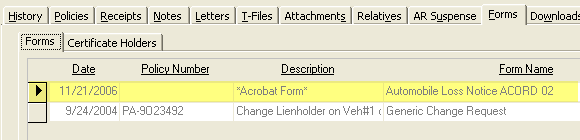
and often numerous, copies. These forms are stored under the `Forms` tab in the
customer folder. In version 3 we are providing additional functionality that will
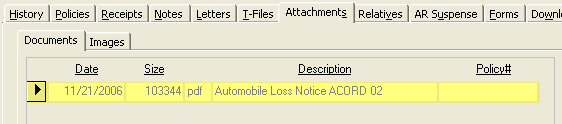
allow users to save a static copy of a form, called a flattened form,
which will be stored under the `Attachments` tab. Notice the difference in the highlighted
rows on the screens below: |
|
|
Example
1: Current PDF Form
|
Example
2: New Flattened PDF Form
|
Save as Attachment |
|
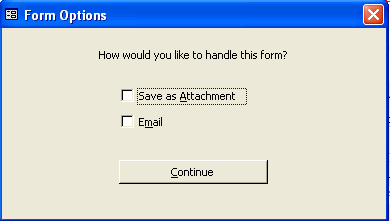
You have the option of saving
an ACORD form as a flattened attachment each time you 'Save to WinAA' from the Adobe
Reader. An email can also be quickly created with the form attached. |
 |
|
|
Signing |
Now, when choosing
to add a form, you have the added option of selecting a signature to place on the
form. The signature and permissions for each CSR can be configured by going from
the Main Menu to System Setup, User Setup, and clicking on the Signature tab.
Important Note: If you have been using the signatures feature for
letters there is no additional setup required to use those signatures on forms. |
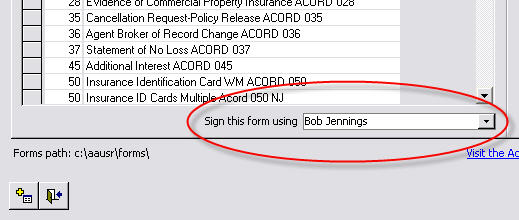
Capture of the
`Add a Form` screen showing the signature selection dropdown. |
|
|
Packaging |
|
PDF packaging, or
form packaging, is the ability to take multiple PDF file attachments and combine
them into one PDF package. You may want to do this for record keeping or to simplify
email attachments. The following document describes both how to add attachments
to a customer folder and how to package these attachments together. |
|
|
|
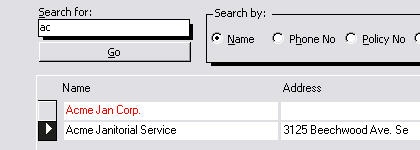
Step 1:
Open the customer's folder. In our case it's Acme Janitorial. |
 |
|
|
|
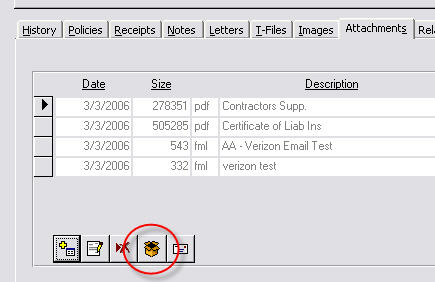
Step 2:
Click on the 'Attachments' Tab. You will notice a new button below the list
of attachments.
Package Attachments ( Alt + K )
Important Note:
This option is unavailable if there are no pdf attachments. If this button appears
dim, or grayed out, add two or more pdf attachments to the customer's folder. |
 |
|
|
|
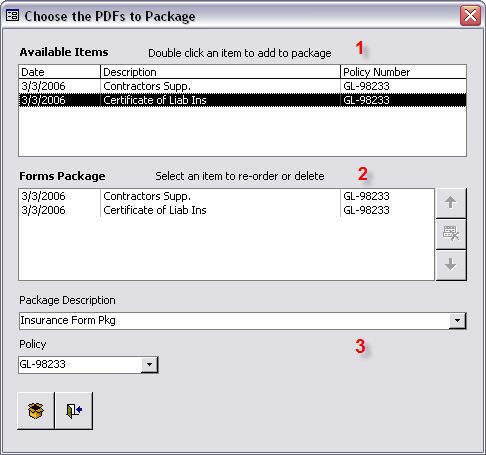
Step 3:
Clicking the Package Attachments button will display the screen to the right.
1. Double click on items in the list to add them to your form package.
2. Click on an item in the list to select it, then use the up, down, and delete
buttons on the right to order them as you like.
3. Choose a description and policy from the provided list or type a new description
then click the Package button to finish. |
 |
|
|
|
|
|
|