Manually Correct a Missing File Problem
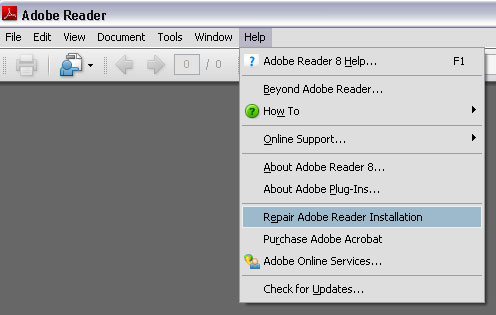
First, The Agency Advantage needs to be closed. Open up Adobe Reader
8. Some computers may show the "Beyond Adobe Reader" prompt. You can
close the Beyond Adobe Reader window leaving Adobe Reader 8 open to
a grey screen.
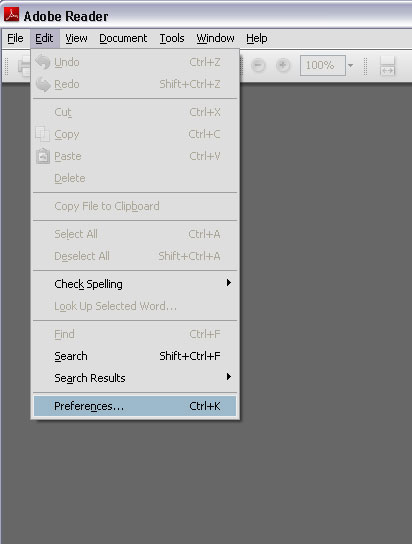
Click on Edit then Preferences.
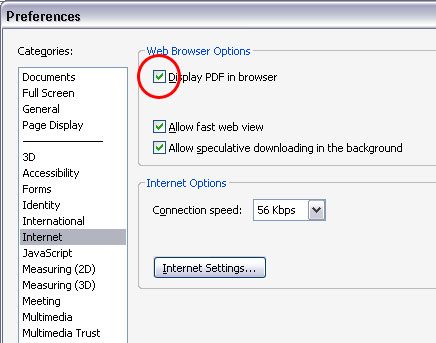
Choose Internet, from the list on the left, and UNCHECK
"Display PDF in browser." under Web Browser Options.
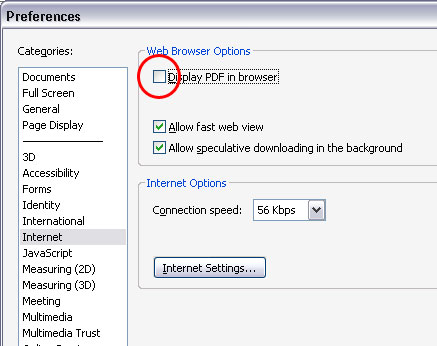
Click OK at the bottom of the window. Adobe Reader
may go through an installation. If Adobe Reader asks if you want to
restart your computer, choose No.
Close Adobe Reader. Reopen Adobe Reader and go back to Edit then Preferences.
Choosing Internet, from the list on the left, this time you will need to CHECK "Display PDF in
browser."
Click OK at the bottom of the window. Adobe Reader
may go through an installation again. If Adobe Reader prompts you
to restart your computer, click No.
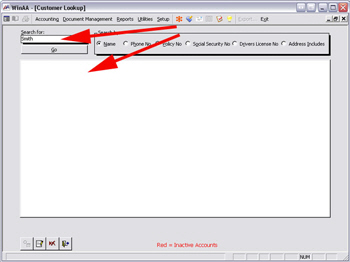
Close Adobe Reader and open The Agency Advantage. You may now look up
your customers by name.
Written by: Tina Stewart
Back
|